Tampilkan postingan dengan label firewall. Tampilkan semua postingan

Kamis, 14 Mei 2015

Disable ssh and telnet on mikrotik


SSH and Telnet service are active by default on mikrotik router, so we can configure mikrotik router remotely from ssh and telnet client. But on some condition network administrator need to disable this service, because maybe worry about hacker to collect or owned this router. On the next article i'll share how to configuration ssh service to be remote securely using port knocking.

Now, here is step by step how to disable ssh and telnet service on mikrotik router :

  • Connect to your mikrotik router
  • Click IP > Services 
  • Next click ssh and telnet, then click on sign (X) to disable service 
  • Ok, its so simple...

Rabu, 13 Mei 2015

How to record ip address client on mikrotik

Mikrotik router supports a feature to record log ip address behind mikrotik, so if we want to monitoring where is ip address or client are active we can use this feature. Usually many network administrator need to monitoring them to make sure there is no unwanted ip address or client use this resource (network resource).

This is how to configuring record ip address client on mikrotik

  • Connect to your mikrotik router using winbox
  • Click on IP > Firewall
  • On the tab Firewall click sign plus (+) 
  • Select chain : forward (because we just need to record ip address through to the mikrotik router) In. Interface : ether1 (select your interface for LAN, on this example is ether1) Connection State : new (just for record ip address who create new connection) 

  • Next, click on the tab Action, select Action : add src to address list, Address List : ip address lokal (you can change the name for Address List to anything), Timeout : 00:10:00 (set timeout according to the needs, i set to ten minutes record, after ten minutes log will be remove, but if ip address still active, will be record again) 
  • Last step, clik OK, rule will be show in the table 
  • Now, if there is an ip address client are online/active, we will see that ip address from tab Address List 
We can custom or make this rule for work with another filter what we want, like just ip address on address list name ip address lokal only can access Facebook, Twitter, or anything.

Ok, see to the next article later...

Minggu, 10 Mei 2015

how to block ping on mikrotik


In this posting, i'll share how to blocking ping or icmp packet on mikrotik router. On default, icmp protocol has been opened, because this protocol is used to check is host up or down.

But on certain condition, icmp protocol must be closed to avoid from scanner tool. So we have to close this protocol. On mikrotik we can do this by simple configuration.

Before we configuration, ping to ip address 10.16.34.1 are reply.

Here's how to step by step block icmp packet on mikrotik :

  • First, connect to your mikrotik router using winbox
  • Then, click IP > Firewall 
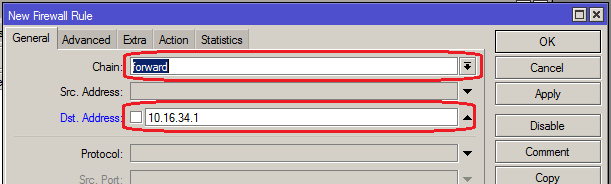
  • On the tab Filter Rules, click plus sign (+) 
  • Select chain : forward (note : if you want to block ping to mikrotik router, you must select chain : input) and fill in the Dst. Address to ip address target 
  • Next, on the tab Action, select Action : drop 
  • Click OK button, and now you can test your rule from Client
After we create rule, now ping to ip address 10.16.34.1 are timeout

You can also create this rule from terminal, if you are familiar using terminal. Open your terminal from winbox or if you are remote using ssh or telnet, just type this command.
 /ip firewall filter add chain=forward dst-address=10.16.34.1 action=drop  
Note :
Chain : change to your chain rule, forward if you are going to block the ip address outside mikrotik router, and input if you are going to block ip address mikrotik router.
Dst-address : change to the target ip address you want to block.

Ok, that's so simple setting, hope its useful.

Jumat, 08 Mei 2015

Mikrotik nat configuration


In this tutorial, i'll share how to configuration nat on mikrotik. This configuration serves to connect client to the external network (different networks).

Step by step how to :

  • First connect your mikrotik router using winbox
  • After that, open tab on the firewall 
  • Next, click on the tab NAT  and click on the plus (+) sign
  • On the general tab, select chain : srcnat, fill on the Scr. Address to your range of network, example : 10.16.34.0/24 
  • Next, on the action tab, select action : masquarade 
  • Click OK to complete your configuration 
Now, configuration nat has been completed. You can test from your client to test ping or try to browsing to the Internet.

Ok, thus the above tutorial hopefully can help you.


Ads Inside Post